
|
||||||||
 
INTERFACE - THE EXPLORING VIEWThis is your basic view into the world of Undercroft with all the necessary controls for exploring and combat: 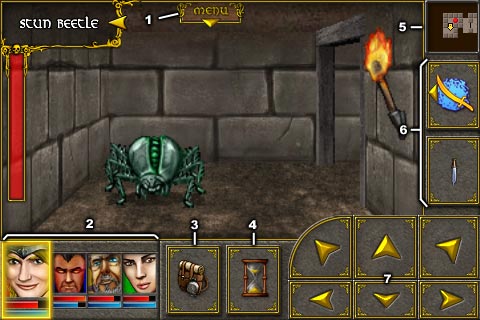
The controls are:
1 - Menu button. It opens the
game menu.
2 - Your heroes. The first one is selected, so it is an active hero. You can change your active hero anytime. The faces are rather small, but you can hold your finger on them and drag around until the right one is highlighted. The choice is made upon release of the finger. By tapping the selected face again you open the hero's character screen. 3 - Inventory button. Opens the inventory screen. See Interface - the inventory view. 4 - End turn button. See combat for details. 5 - Minimap. Tap it to open a detailed map. 6 - Action buttons of the active hero. They do attacks, use skills and change active skill. See combat for details. 7 - Walking buttons. The biggest part of the screen is the view of your surroundings. You can tap on objects in there to interact with them. When you tap on area in front of you on the ground, you will open a screen similar to inventory screen, where you can pick up the items, if there are any on the ground. 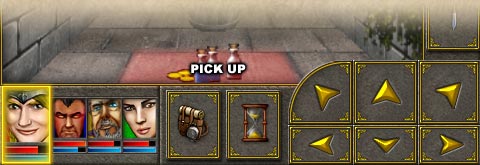
 A useful trick: tap and hold on the ground area to
take all items immediately.
A useful trick: tap and hold on the ground area to
take all items immediately.
Game menuYou can save and load your position here. The game autosaves on every transition between levels - for example if you descent to or exit a dungeon.
In options you can switch to easy difficulty and
back anytime. The easy difficulty means that:
Detailed mapYou can drag detailed map around. There are three buttons: close map, focus on party, legend on/off. You can see your exact position in center on the upper edge of the screen.
At most there can be two enemies in one square. If you have one or two enemies in front of you, you can see their names and red health bars on the screen. Tap the health bars if you want to change target of your next attacks. 
The combat is turn based. During a round your heroes perform attacks one at a time. When they are done, the enemies move or strike. Action buttons
You can attack with a selected (active) hero by pressing one
of the two action buttons (they are on the right side
below the minimap by default):
 Skill button (the upper one by default) is used to
perform an active skill. This can be some spell or special
enhanced attack. Using a skill drains the hero's stamina. If
the stamina is too low, you can no longer do the action. Icon
on the button indicates currently selected skill. You
can change the skill by
tapping and holding the skill button.
Skill button (the upper one by default) is used to
perform an active skill. This can be some spell or special
enhanced attack. Using a skill drains the hero's stamina. If
the stamina is too low, you can no longer do the action. Icon
on the button indicates currently selected skill. You
can change the skill by
tapping and holding the skill button.  Attack button (the lower one by default) is used for a
normal strike with the currently equipped weapon. The icon
shows the weapon you have in use. Sometimes you can see little
plus signs on the button. This means that the hero has
expertise in usage of that kind of weapons and gets bonus to
the attack power.
Attack button (the lower one by default) is used for a
normal strike with the currently equipped weapon. The icon
shows the weapon you have in use. Sometimes you can see little
plus signs on the button. This means that the hero has
expertise in usage of that kind of weapons and gets bonus to
the attack power.
End of turn and enemy in sight
When there are no enemies around you can do any kind of
actions without limitation. But if you have enemy
in sight
(that means the enemy can be attacked by melee or ranged
weapon by you) you can't do anything freely.
 If hero attacks or uses spell or changes equipment when
enemies are in sight, the round gets started.
You will recognize this by a symbol of red hourglass over a
face of a "used" hero. Also the walking buttons will be
blocked until the round is finished.
You will be able to walk again, when the round is
finished.
All heroes must be unblocked in order to let the party walk
around.
If hero attacks or uses spell or changes equipment when
enemies are in sight, the round gets started.
You will recognize this by a symbol of red hourglass over a
face of a "used" hero. Also the walking buttons will be
blocked until the round is finished.
You will be able to walk again, when the round is
finished.
All heroes must be unblocked in order to let the party walk
around.
You can finish the round in two ways - by making action with all your heroes, or prematurely by pressing the end turn button.
Protection of the weakest
In combat the weakest member of the party (the hero with the
lowest current health) has significantly lower probability to
be hit thanks to protection of the other party members.
The summoned helpers
Some of the classes can summon creatures to help them in
combat. Some info about that:
|
||||||||

|