
|
||||||||||||||||||||
 
INTERFACE - THE INVENTORY VIEW
When you open the inventory, you get this screen with three panels: The left panel shows the equipment of currently selected hero. The hero can equip a variety of items, but they have to be put in a correct slot. You can use:
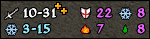 Below the equipment there is a quick info about hero's attack
power, defence and resistances. You can see changes immediately,
when you change the equipment.
Below the equipment there is a quick info about hero's attack
power, defence and resistances. You can see changes immediately,
when you change the equipment.
The middle panel is the intentory. You can drag it up and down. Some of the items there have a colored background:
 The right panel is the info panel. It shows details about
the selected item. On the bottom of it there is a
sort button and money.
The right panel is the info panel. It shows details about
the selected item. On the bottom of it there is a
sort button and money.
On the bottom of the screen there are several buttons for switching various screens: 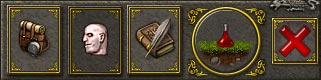
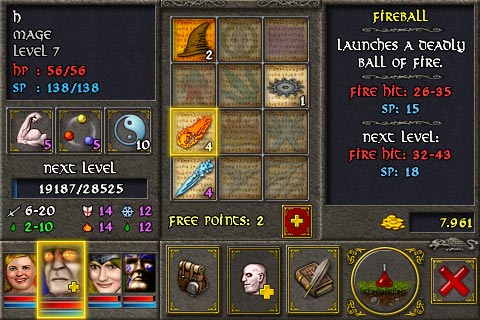
Another important screen is a character screen displaying hero's attributes and skills. The left panel shows hero's name, class, level, health and stamina. Below that you can see strength, dexterity and constitution. Then there is info about experience. Last is the attack power and resistances, just like in the inventory screen. In the middle you have list of the skills for the selected hero's class. On the bottom you see free points - if any available. You can use them to upgrade skills or strength/dexterity/constitution. The right panel displays info about a selected skill.
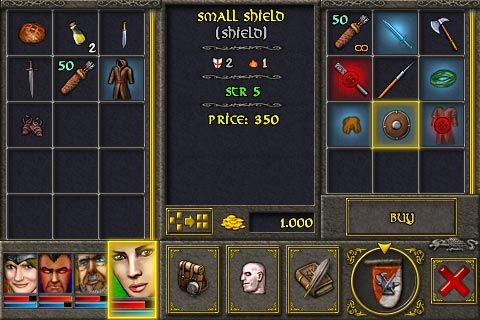
When you tap on ground or enter a shop, you get slightly different screen. 1) The inventory has moved left. 2) The list of items lying on the ground or available for purchase in the shop is on the right side. 3) The info panel displaying details about selected items is in the middle. Below the list on the right side you have a BUY/SELL button. When you are looing at ground, you have a TAKE ALL button there. Select an item you want to sell or buy or take. Tap on the button to do that. You can also tap again a selected item to buy/sell/drop/take immediately. Some items have additional symbols:
|
||||||||||||||||||||

|


